2022年1月4日星期二

Scania S6 Truck ECU Update by Scania SDP3

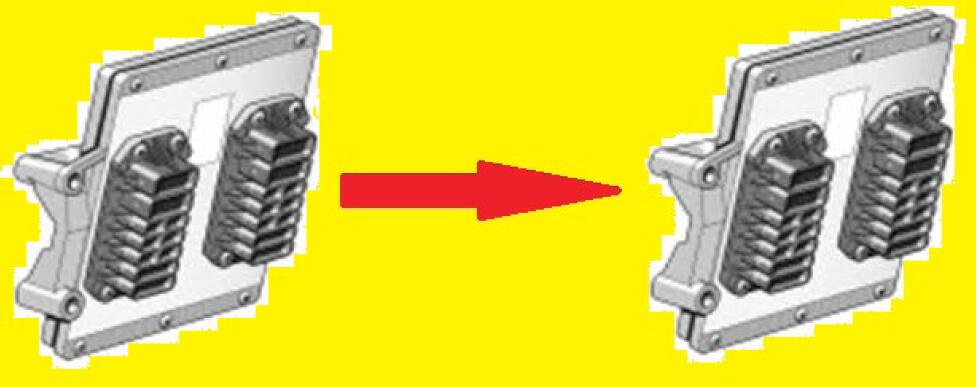
This instruction show you guide on how to use Scania SDP3 software to update ECU for Scania S6 truck.

Scania-S6-Truck-ECU-Update-by-Scania-SDP3-1

Preparations:

2022 Scania SDP3 V2.50.1 V2.40 Diagnostic Software Free Download

Procedures:

Connect SDP3 VCI3 interface to Scania S6 truck,then run SDP3 software

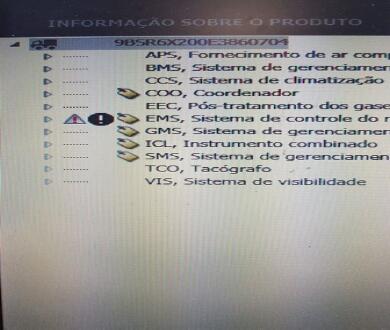
Search S6 ECU related available update

Scania-S6-Truck-ECU-Update-by-Scania-SDP3-2

Check if the S6 ECU is compatible with the one it will be updated (CAN speed 250KB or 500KB)

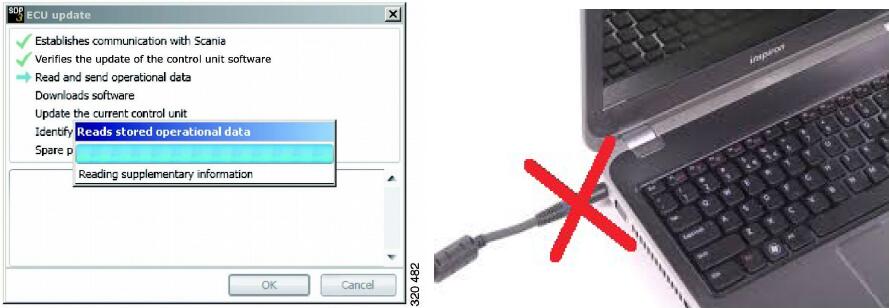
Put the computer to download the update without the PC battery charger.

Scania-S6-Truck-ECU-Update-by-Scania-SDP3-3

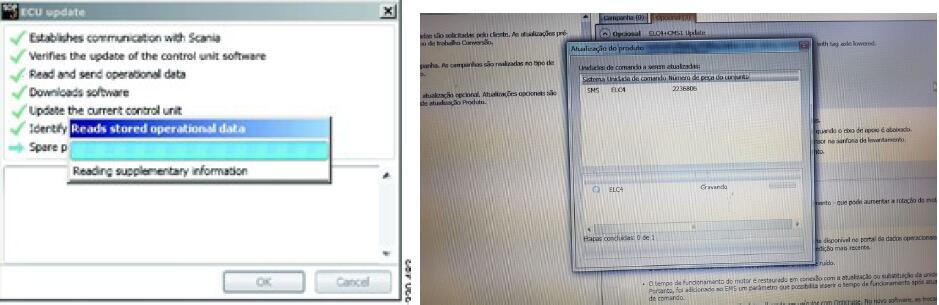
When you start recording the SDP3 will ask what you want.

Update without the battery charger (Stop the service at this point)

Scania-S6-Truck-ECU-Update-by-Scania-SDP3-4

Don’t turn off the vehicle contact key

Disconnect the module that is in the vehicle and connect that you will update at this time

Scania-S6-Truck-ECU-Update-by-Scania-SDP3-5

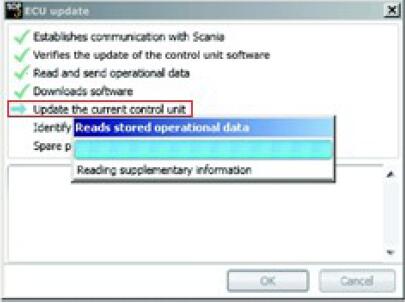
Now you click yes to continue recording update

Scania-S6-Truck-ECU-Update-by-Scania-SDP3-6

During recording disconnect the internet from computer (not send information to scania that the ECU has been updated)

Scania-S6-Truck-ECU-Update-by-Scania-SDP3-7

Wait ECU recording finish

Switch off when ordering

Then programming is finish.

For more information about Scania truck,please refer to:Scania Trouble Repair.

2022年1月2日星期日

JCB Electronic Service Tool Reviews

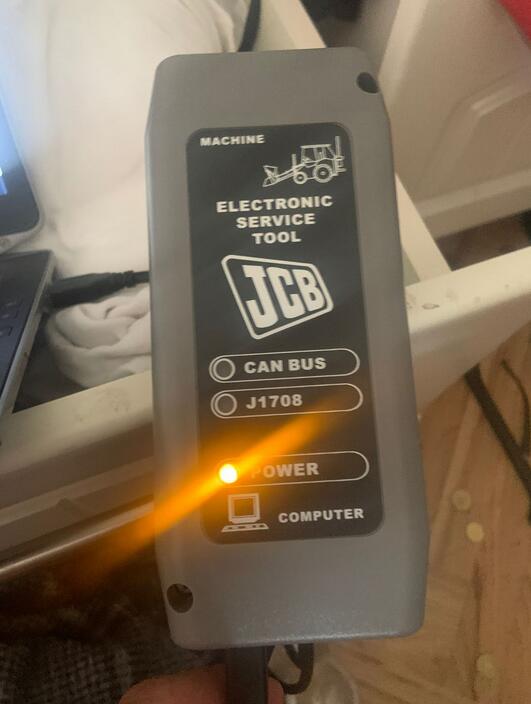
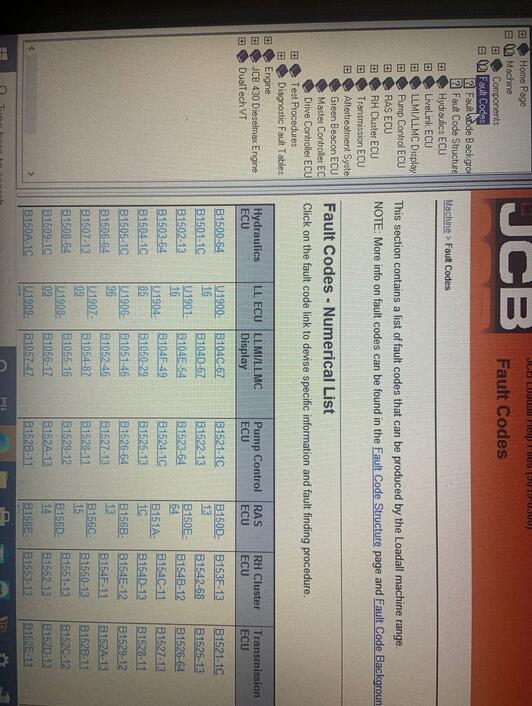
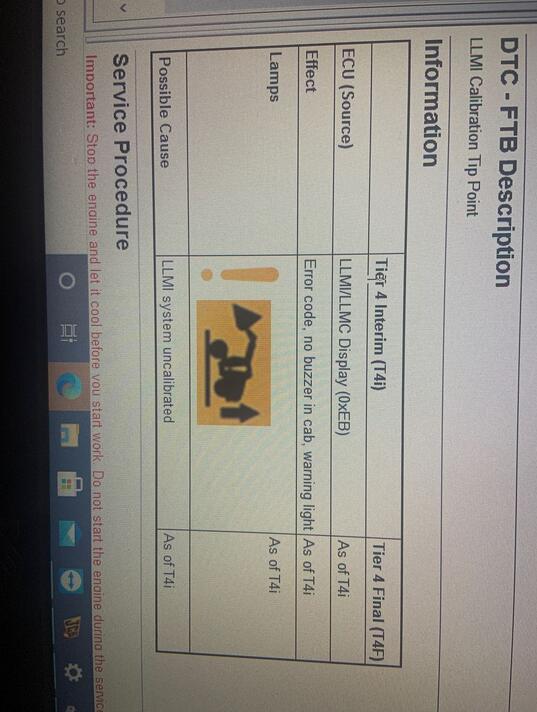
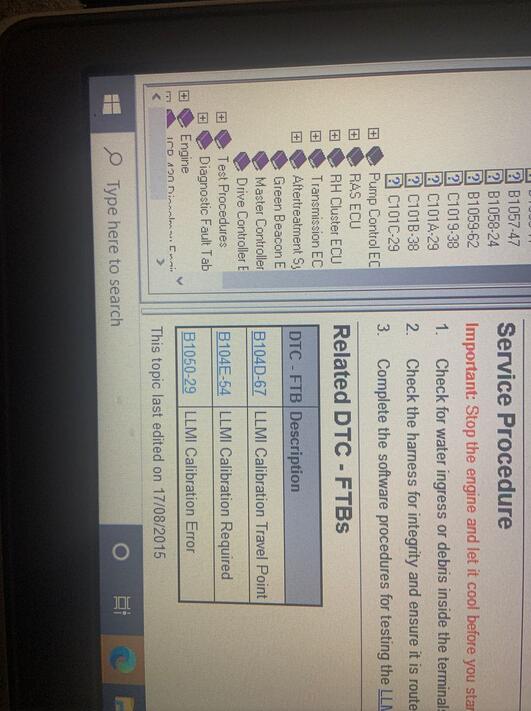
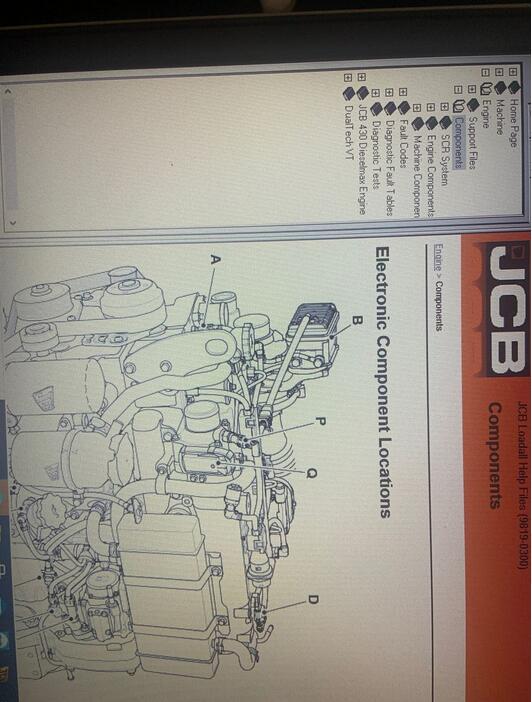
JCB Electronic Service Tool diagnostic interface is used for fast and effective fault finding, check maintenance standards, see if the machine has been abused, view and change machine set up data, flash ECUs with the correct data files. You can reset EMS hours, edit speed limiters and use other functions what require special unlock.

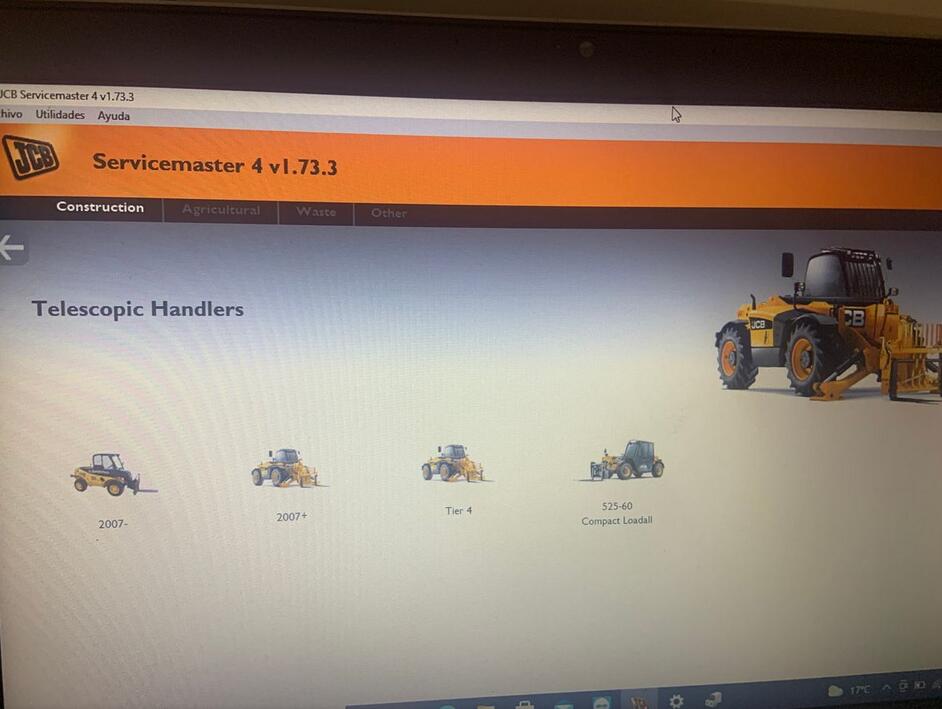
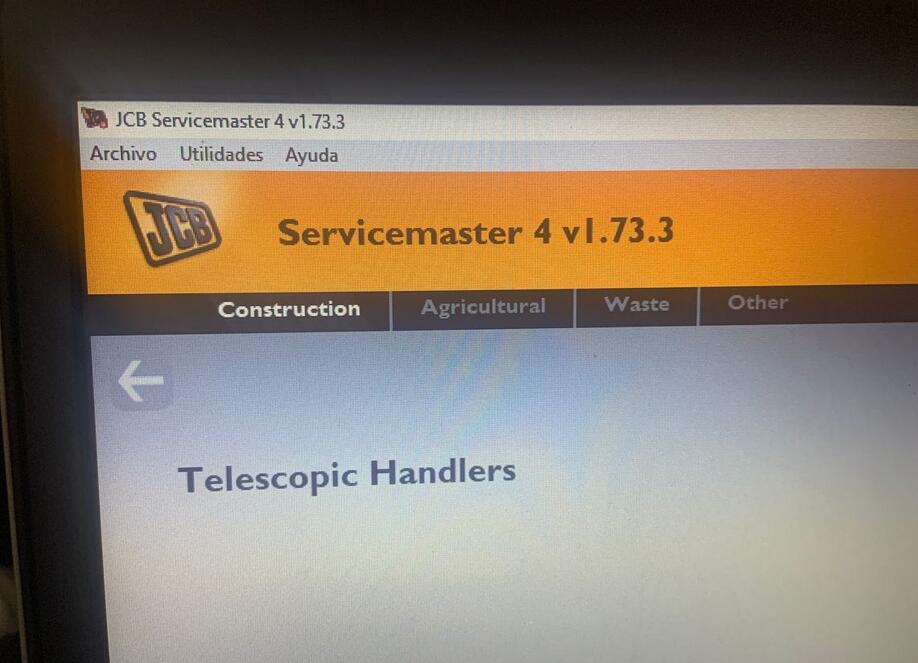
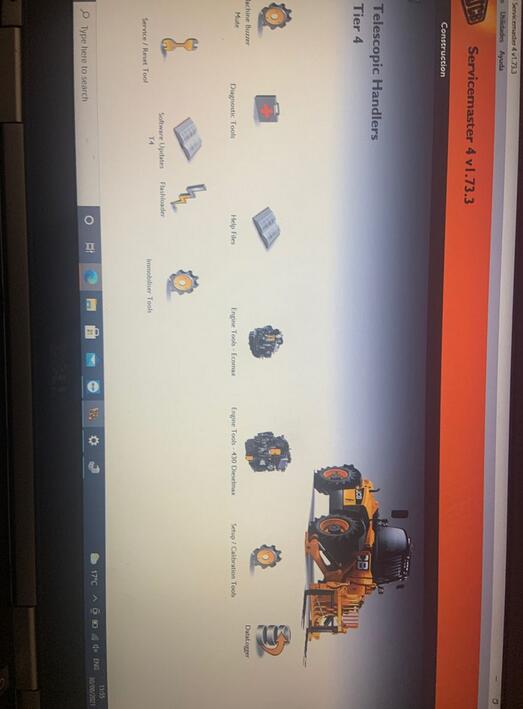
JCB Service Master is a gateway application allowing a large number of Vehicle Support Applications to be linked using one familiar interface. The interface acts as a graphical tool for selecting the target vehicle from a groups of Vehicle Families and triggering the particular Service Tool Application desired. This removes the need for a user to ‘remember’ every individual service tool available and select which one if intended for a particular machine.

The JCB Service Master also provides several key features that will accompany all JCB projects, a Multi Language editing tool that provides a means of individual text string translation for all JCB Applications and a means to select a localised language translation for the each JCB Application.

1. Lastest Software Version: V1.73.3 (We also have V8.1.0 and v1.45.3 software , if you need it , we can offer to you )
2. Language: English, French, German, Italian, Portuguese, Spanish
3. Update By Email

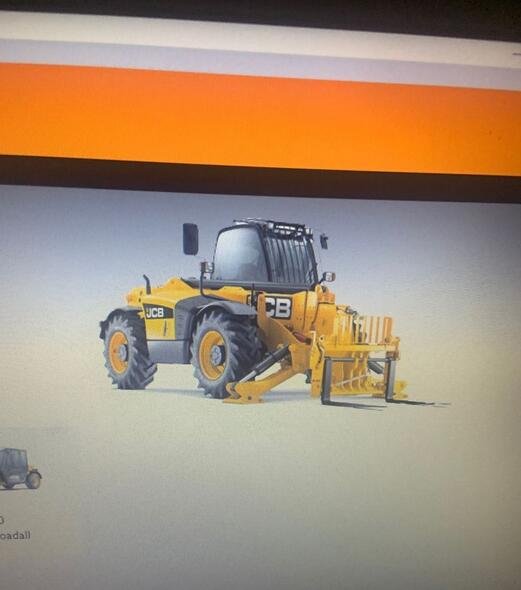
JCB-Electronic-Service-Tool-1
JCB-Electronic-Service-Tool-2
JCB-Electronic-Service-Tool-3
JCB-Electronic-Service-Tool-4
JCB-Electronic-Service-Tool-5
JCB-Electronic-Service-Tool-6
JCB-Electronic-Service-Tool-7
JCB-Electronic-Service-Tool-8
JCB-Electronic-Service-Tool-9
JCB-Electronic-Service-Tool-10
JCB-Electronic-Service-Tool-11
JCB-Electronic-Service-Tool-12
JCB-Electronic-Service-Tool-13
JCB-Electronic-Service-Tool-14

In summary, with the latest version of ServiceMaster loaded on your laptop, you can:

– Fault detection
– For a quick and effective search of failures.
– Verify maintenance standards.
– View and change the configuration data of the machine.
– This can only be done with ServiceMaster.
– Flash ECU with the correct data files.
– Resolution of the problem
– Verify service standards.
– View and edit the generated data.

Calibration program JCB ServiceMaster 4 allows the user to diagnose construction, agricultural and engine JCB.

Service Master is a gateway application allowing a large number of Vehicle Support Applications to be linked using one familiar interface. The interface acts as a graphical tool for selecting the target vehicle from a groups of Vehicle Families and triggering the particular Service Tool Application desired. This removes the need for a user to ‘remember’ every individual service tool available and select which one if intended for a particular machine.

The Service Master also provides several key features that will accompany all JCB projects, a Multi Language editing tool that provides a means of individual text string translation for all JCB Applications and a means to select a localised language translation for the each JCB Application.

2021年12月14日星期二

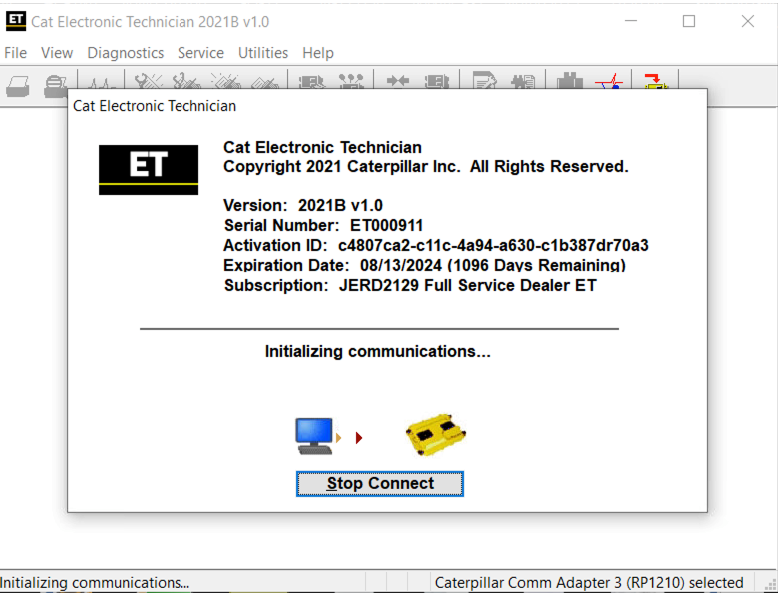
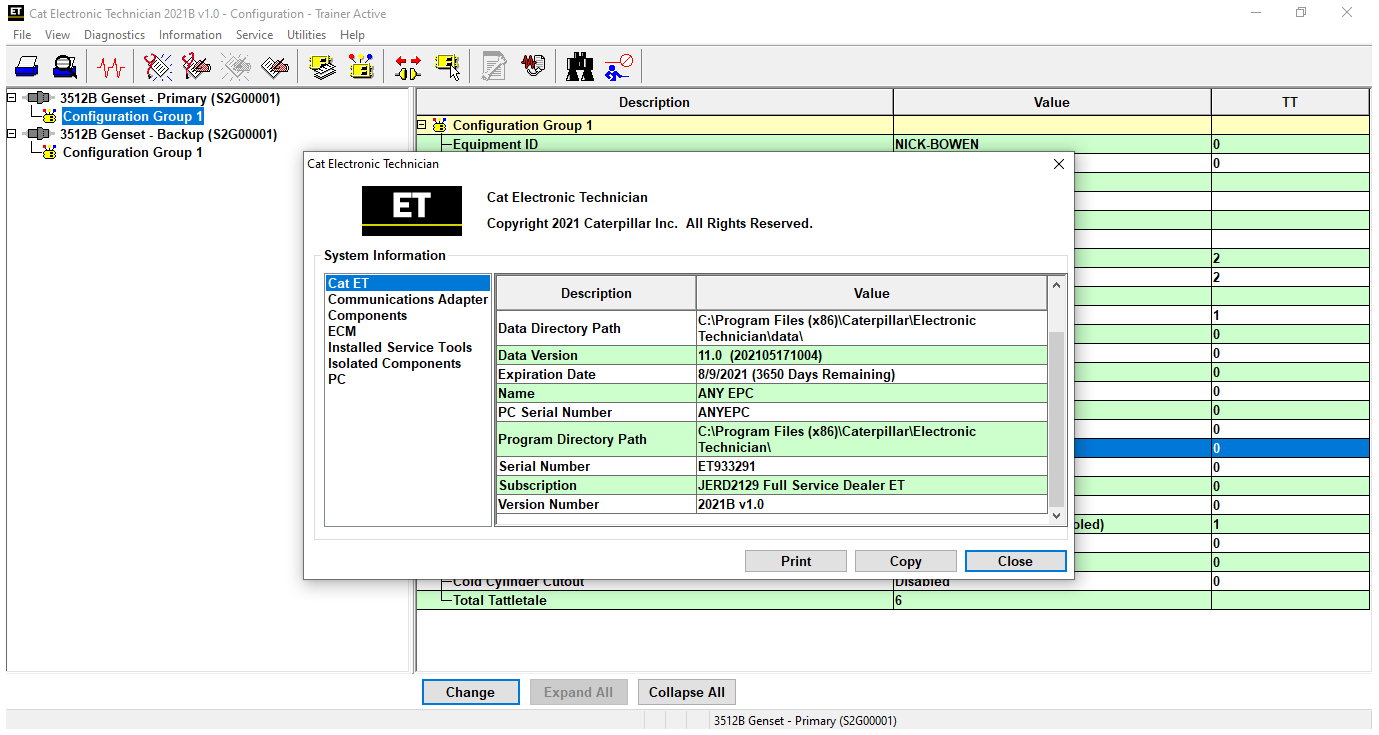
Newest 2021B (replaces CAT ET 2021A, 2020C, 2020B) Caterpillar ET CAT Electronic Technician Diagnostic Software

Caterpillar ET 2021B is the newest software of CAT Caterpillar ET Diagnostic Adapter 3

Caterpillar electronic technician 2021B with WinFlash future is an updated version of the caterpillar dealer diagnostic software that can help technicians to diagnose existing and potential problems with their electronically controlled Caterpillar Engines and Machines.


The list of supported CAT machines and engines can be found below:
Engines:
Electric Power
Electric Power Generation
Industrial
Marine Power Systems
Oil and Gas
Machines:
Articulated Trucks
Asphalt Pavers
Backhoe Loaders
Cold Planers
Compactors
Dozers
Drills
Excavators
Feller Bunchers
Forest Machines
Forwarders
Harvesters
Hydraulic Mining Shovels
Knuckleboom Loaders
Material Handlers
Motor Graders
Off-Highway Trucks
Pipelayers
Road Reclaimers
Site Prep Tractors
Skid Steer and Compact Track Loaders
Skidders
Telehandlers
Track Loaders
Underground – Hard Rock
Underground – Longwall
Underground – Room and Pillar
Utility Vehicles
Wheel Dozers
Wheel Excavators
Wheel Loaders
Wheel Tractor-Scrapers

What’s New – 2021B
End of Support for Windows 8

Microsoft is ending extended support for Windows 8 as of January 2023. The service tool will be ending support for Windows 8 after the 2021C release.

Calibration Images

Images attached to calibration instructions will no longer need to be opened manually to be viewed by a technician. The service tool will now have split user interface windows for calibrations that display pictures. This will allow the technician to see the images without having to navigate away from the instructions. Images may be opened into individual windows and resized for better clarity. The user interface for calibrations that do not display pictures will remain unchanged.

Default PC Browser

The service tool will no longer automatically launch web pages in Microsoft Internet Explorer. Web pages will now launch in whatever application is configured as the default internet browser. Certain web pages require a specific browser and may launch in a different browser.

What’s New – 2021A
No significant new features or feature enhancements

What’s New – 2020C
No significant new features or feature enhancements

What’s New – 2020B
Trainer Update – 299D3

The 299D3 Skid Steer Loader has been added to the Trainer application.

What’s New – 2020A
Product Status Report Updates

The Product Status Report has been updated to include throttle configuration information.

Built-in Factory Password Generator

The experimental feature allows you to decode (18-Bit passwords not supported) factory passwords

What’s New – 2019C
Indication of Selected Communications Adapter

The service tool now displays the selected communications adapter when the service tool is disconnected. The adapter name is displayed in the status area at the bottom right of the service tool window.

End of Support for Windows 7

Microsoft is ending extended support for Windows 7 as of January 2020. The service tool will be ending support for Windows 7 as of the 2020A release.

What’s New – 2019B
Automatic Product Status Report (PSR) Upload

The service tool includes a new tool that automatically uploads Product Status Reports. The tool scans for newly generated Product Status Reports and uploads them when an internet connection is available. The default is that automatic report uploading is enabled. The Preferences dialog has an option to disable the tool.

What’s New – 2019A
ECM Naming Changes

Certain ECMs connect to the service tool over two data links at the same time. The service tool shows a message popup when the ECM is only detected on one link. The service tool has been changed to add the text **INCOMPLETE** in the ECM name when the connection is incomplete. Service tool features that display a connection icon also use a new icon for an incomplete connection.

2021年12月12日星期日

How to deal with the CAT Caterpillar ET car indicator does not light up

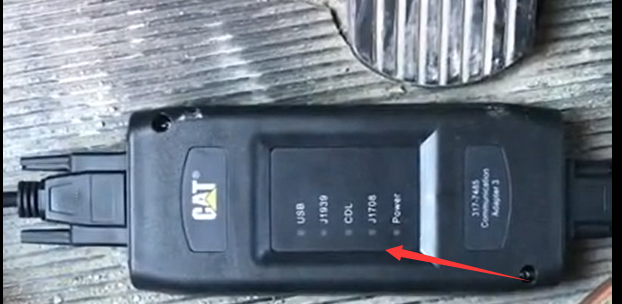
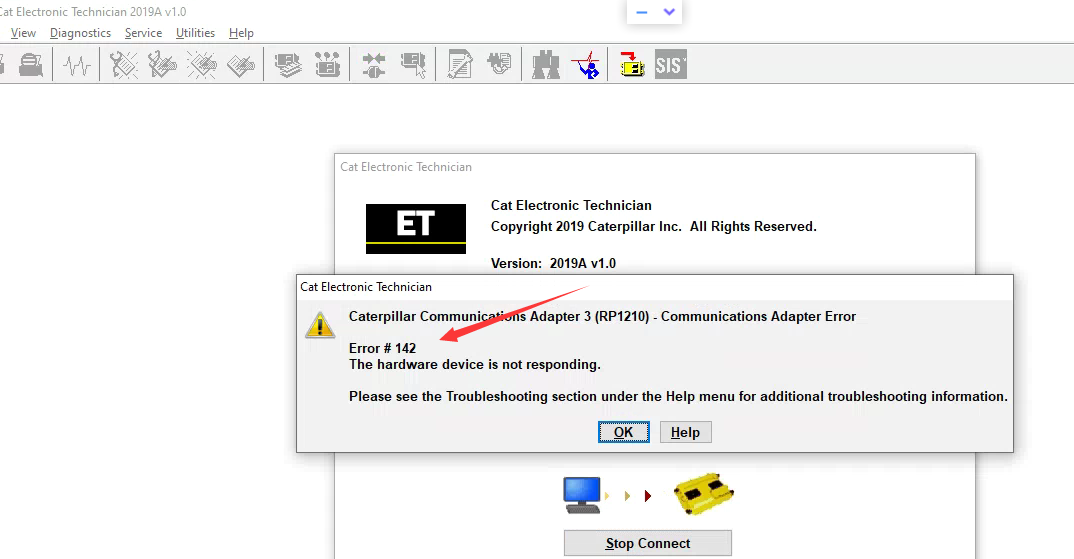
CAT Caterpillar ET Diagnostic Adapter 3 after device connected with Vehicle,the indicator light is off and can not work normally

Frequently reported by North American customers
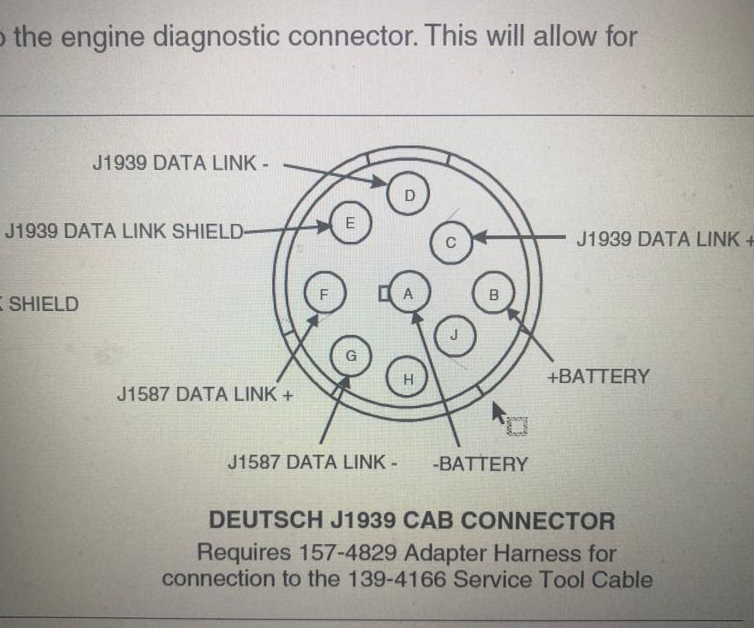
CAT Caterpillar ET Diagnostic Tool(9PIN connector)connect with Cat Vehicle,CAT Caterpillar ET the indicator light is off and the device can not work. Picture as below:


Have replaced with new CAT Caterpillar ET Diagnostic Tool,the result still same.

We checked the connector of CAT Vehicle,found the problem:

It turns out that some of the CAT Vehicle connector are not standard, can not be match our 9 pin connector of the device.

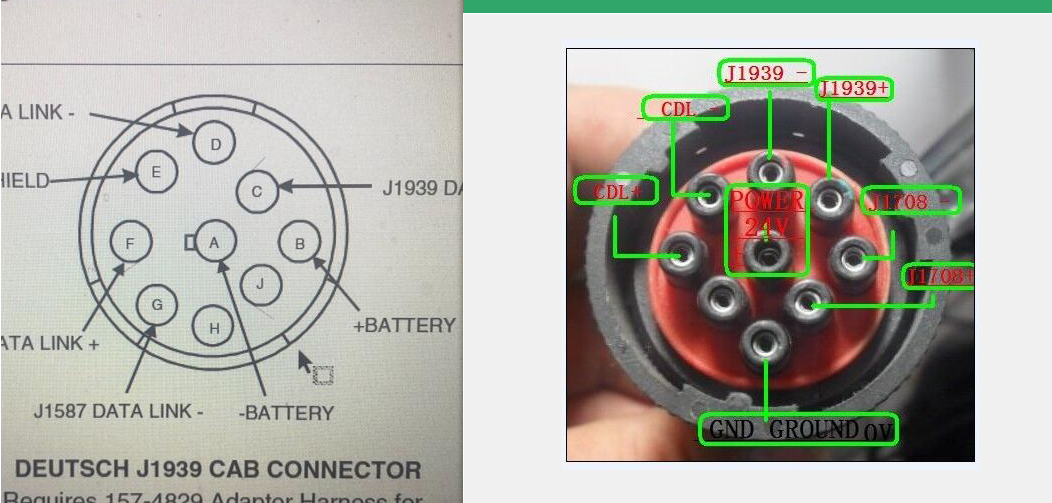
The connector of our customer’s CAT Vehicle as below:

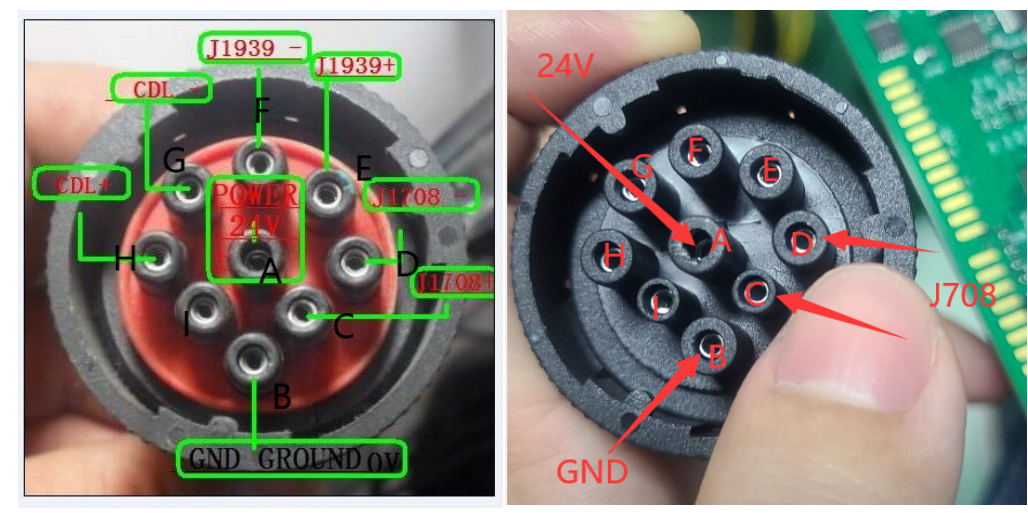
CAT Caterpillar ET Diagnostic Tool 9PIN connector as below:

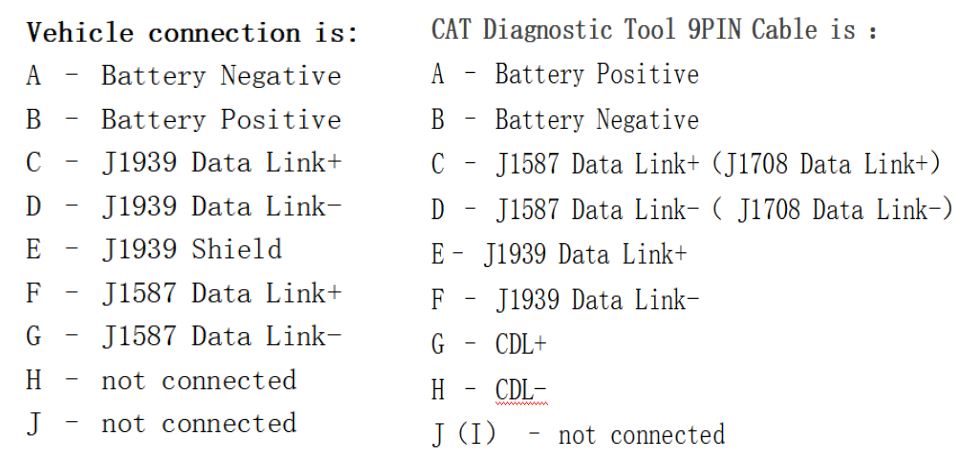
The comparison is as follows (on the left is the diagnostic socket of the car, on the right is the 9PIN connection line of the CAT device):

Vehicle connection is:
A – Battery Negative
B – Battery Positive
C – J1939 Data Link+
D – J1939 Data Link-
E – J1939 Shield
F – J1587 Data Link+
G – J1587 Data Link-
H – not connected
J – not connected

CAT Diagnostic Tool 9PIN Cable is :
A – Battery Positive
B – Battery Negative
C – J1587 Data Link+(J1708 Data Link+)
D – J1587 Data Link-( J1708 Data Link-)
E– J1939 Data Link+
F – J1939 Data Link-
G – CDL+
H – CDL-
J(I) – not connected

Contrast:

Some CAT Vehicle’s connector not match with our CAT Diagnostic Tool 9PIN Connector. Even the positive and negative poles of the power supply is opposite. So the device will not work and get power from the vehicle.

How to solve such problem:

Customer need to connect the correct diagnostic connector to the corresponding 9 pin diagnostic connector of the CAT device with the cable. So the device can get power from the vehicle and work normally.

2021年12月9日星期四

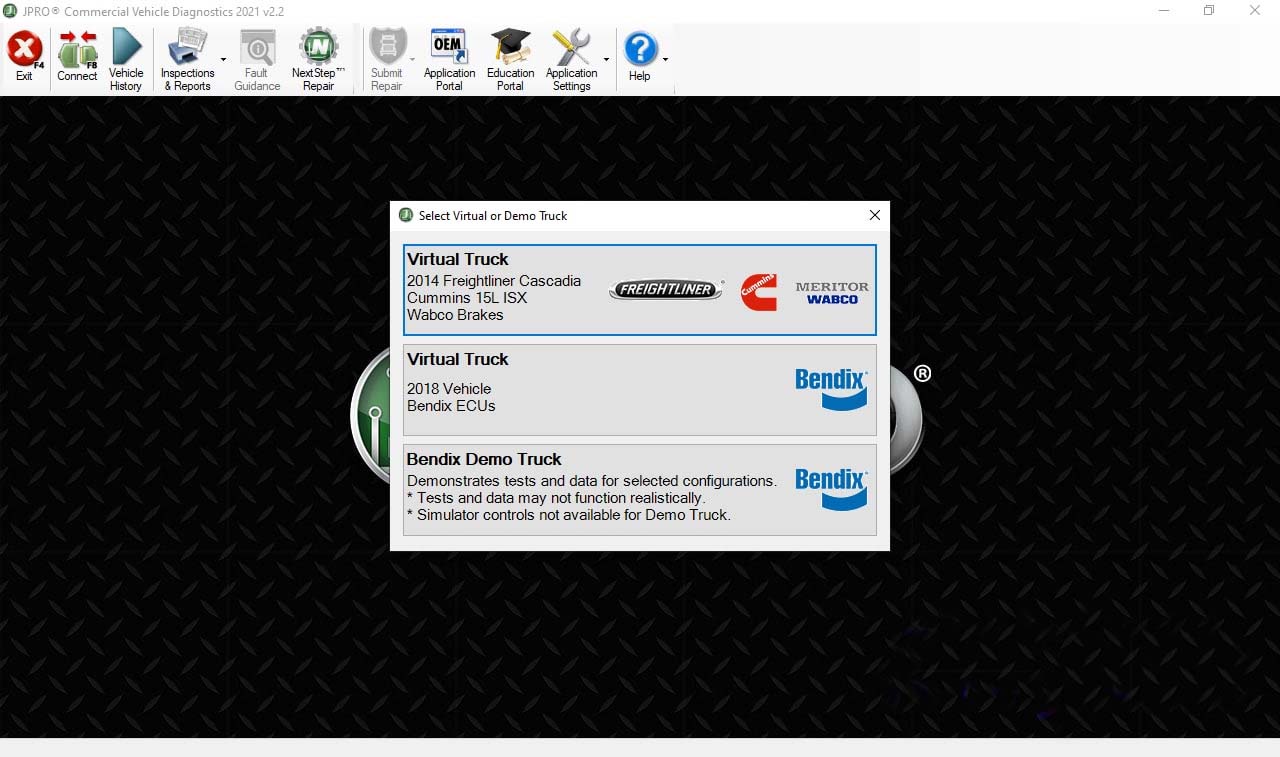
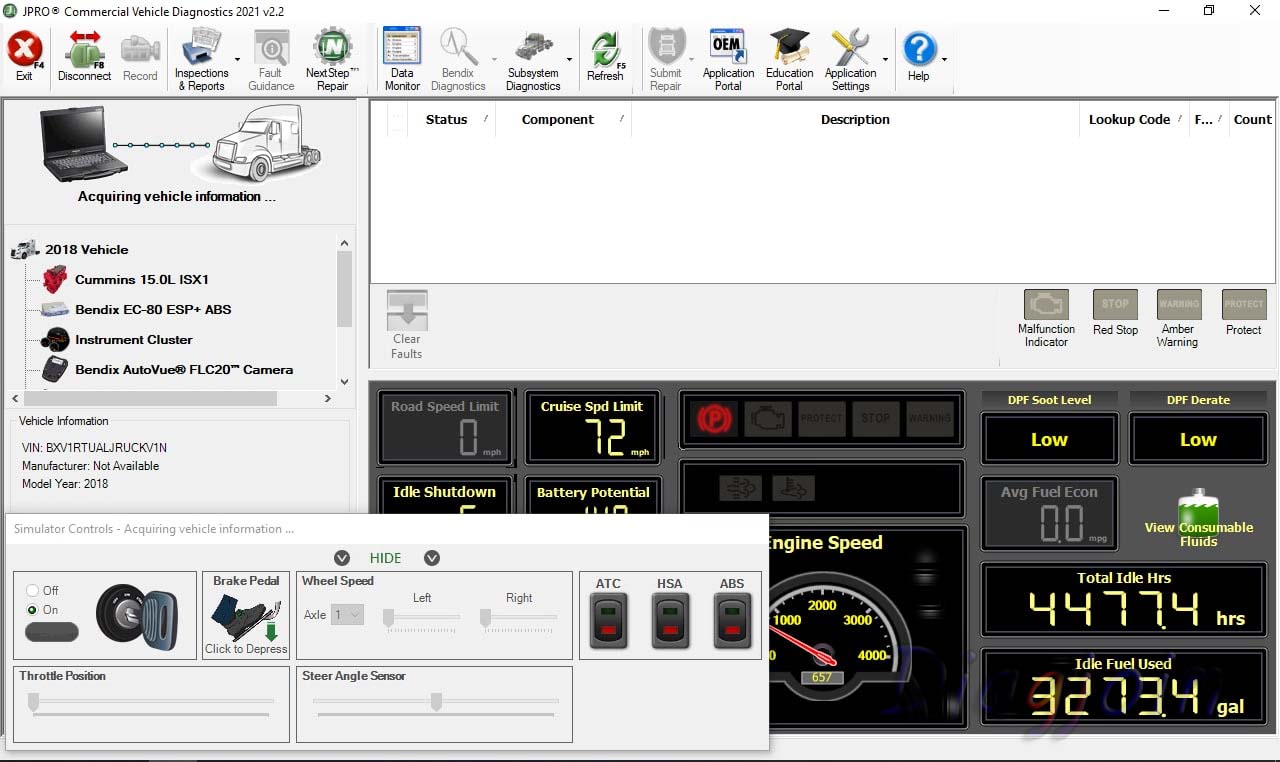
Newest software JPRO Commercial Vehicle Diagnostics 2021 v2.2

Newest Diagnostic Software JPRO Commercial Vehicle Diagnostics 2021 v2.2

Type of catalogue: Diagnostic Software
Region: WorldWide

System Requirements
Supported operating systems:
Windows 8 and 8.1 Pro (32 or 64 bit English, 32 bit Spanish)
Windows 10 (32 or 64 bit English, 32 bit Spanish)

Hardware requirements:
1. Minimum: 4GB RAM, 20 GB of available hard drive space, at least an Intel Core i3 processor and minimum of a 1024×768 sized monitor
2. Recommended: 8GB RAM, 20 GB of available hard drive space, Intel Core i5 processor
3. USB port for DLA+ 2.0 adapter or other RP1210C-compliant vehicle adapter
4. Noregon recommends using a Panasonic Toughbook, but JPRO will work on any current PC running Windows 8 or Windows 10
5. Only the Noregon® DLA+ 2.0, DLA+ 2.0 Wireless, Trailer Diagnostic Adapter, DLA+, DLA+ Wireless, and DLA+ PLC adapters are supported.

Note: Ensure your Noregon adapter driver and firmware is up to date


JPRO 2021 v2.2 is the most popular in-shop diagnostics software for heavy & medium-duty vehicles. JPRO has multi-brand coverage.

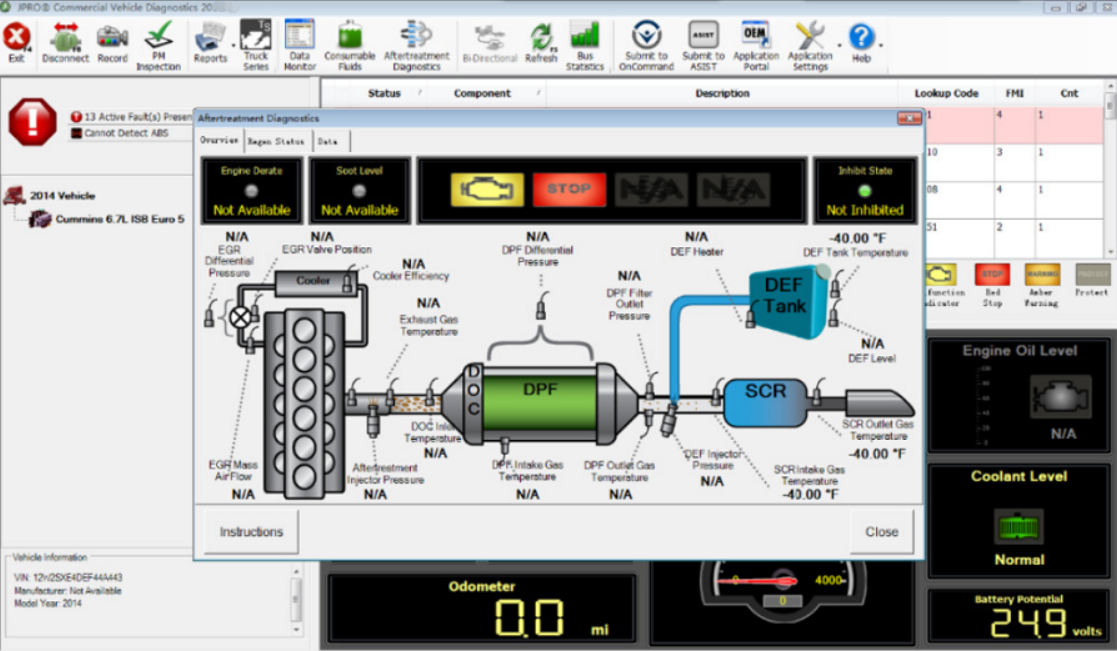
All JPRO information helps speed up repair times by providing users with detailed service & repair solutions with bi-directional functionality, including DPF regens, cylinder cutouts, parameter changes, and much more.

Activation performed using Teamviewer (included in product price) is required before the JPRO Commercial Vehicle Diagnostics application can be used.

New information in JPRO 2021 V2.2
Make and Models Coverage:
* BODY & CHASSIS
* ENGINES
* TRANSMISSIONS
* ABS

Bi-Directional Controls
Perform parameter changes (Mack & Volvo, Cummins, Detroit Diesel, and International), DPF Regens (Mack, Volvo, Cummins, Detroit Diesel, International, and PACCAR) and bi-directional tests with proprietary data and faults.

OE Level Fault Code Information
Display 99% of heavy-duty and medium-duty fault codes with detailed OEM level component and trailer descriptions

In addition, there is access to the document “What’s New” showing all supported features from the Connection Selection and Help menu. There is access to historical fault data from previous JPRO® connections which can be used to identify intermittent vehicle issues.

Notes:
– For the appropriate vehicle adapter driver must be installed in order to connect to an adapter device. This installation is separate and independent of the JPRO Commercial Vehicle Diagnostics installation.
– Are supported only next adapters:
Noregon DLA+ 2.0
DLA+ 2.0 Wireless
Trailer Diagnostic Adapter
DLA+
DLA+ Wireless
DLA+ PLC
– The Noregon DLA+ 2.0, DLA+ 2.0 Wireless, DLA+, or DLA+ Wireless adapters are required in order to connect to the Ford, GM, Isuzu, or Sprinter Medium-Duty vehicles. Please ensure you have the latest driver and firmware loaded.
– To connect to Ford, use the OBD-II cable for Ford (red).
– To connect to GM, use the OBD-II cable for GM (yellow).
– To connect to Sprinter, use the OBD-II cable for Sprinter (Blue for DLA+ adapter family and Gray for the DLA+ 2.0 adapter family).
– To connect to Hino or Isuzu use the generic OBD-II cable (Blue or Gray).
– The JPRO Off-Highway for Caterpillar only supports the following adapters and cables:
Noregon DLA+ 2.0 or DLA+ 2.0 Wireless Adapter

2021年12月8日星期三

FAQs for JPRO Professional Truck Diagnostic Scan Tool

Don’t see your question answered below? Contact us! Sales@obd2tool.com
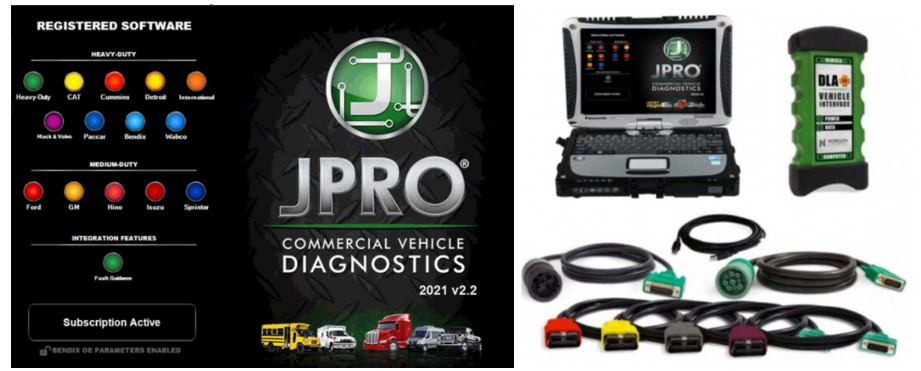
1.What does JPRO do?
JPRO empowers diesel technicians to diagnose and repair all makes, models, and components. JPRO reduces a technician’s dependency on OEM software by offering industry-leading bi-directional controls, including DPF regens, cylinder cutouts, parameter changes, and much more.

2.What trucks will JPRO work on?
For commercial vehicles, JPRO is an all makes, models, and components solutions. For detailed information, check out our coverage chart.

3.Can JPRO adjust parameters such as road speeds or idle shutdown settings?
Yes! JPRO allows for many parameter adjustments, including max road and cruise speeds, idle shutdown, PTO, VSS, Trip Information, and more! Coverage varies by manufacturer, so please visit our coverage chart for complete details.

4.What adapters work with JPRO?
For the most reliable connection and functionality, we recommend a Noregon DLA+ 2.0 adapter but any RP1210C compliant adapter should work with JPRO.

5.If I buy JPRO, do I need anything else?
JPRO software requires a compatible Windows based PC, laptop, or tablet, RP1210C compliant adapter, and the appropriate cable that connects the computer to the vehicle’s OBD-II, 9-pin, or 6-pin port.

PLEASE NOTE: JPRO’s HD support for Mack and Volvo only supports the following adapters: • Noregon DLA+, DLA+ Wireless, DLA+ 2.0, DLA+ 2.0 Wireless, and DLA+ PLC • Vocom 88890300 • NEXIQ USB-Link, USB-Link 2

PLEASE NOTE: Ford, GM, Isuzu or Sprinter mediud-duty vehicle require any of the following adapters for connection: Noregon DLA+, DLA+ Wireless, DLA+ 2.0, DLA+ 2.0 Wireless

6. Do I need internet access for JPRO?
An internet connection is not necessary for connecting to the vehicle, or for using many features in JPRO, but certain tools like Fault Guidance and NextStep Repair require an active connection. Additionally, setup, updates, license verification, or submission of information to third-party warranty systems require internet access.

7. Can JPRO perform bi-directional vehicle tests?
Yes! JPRO comes loaded with industry-leading bi-directional tests for the makes and models you commonly repair. For a full list of included tests, visit our coverage chart.

8. Can JPRO perform ECU programming?
Due to security and safety concerns, JPRO does not allow users to reprogram ECUs.

9.Does JPRO support OBDII?
Yes.

10. What kind of computer and operating system do I need to run JPRO?
Supported Operating Systems:
Windows 8 and 8.1 Pro (32 or 64 bit English, 32 bit Spanish)
Windows 10 (32 or 64 bit English, 32 bit Spanish)
Hardware Requirements:
Minimum: 4GB RAM, 20 GB of available hard drive space, Intel Core i3 processor, and 1024×768 sized monitor
Recommended: 8GB RAM, 20 GB of available hard drive space, Intel Core i5 processor
USB port for Noregon DLA+ or DLA+ 2.0 adapter
Noregon recommends using a Panasonic Toughbook, but JPRO will work on any current PC running Windows 8 or Windows 10

11.Does JPRO work internationally?
JPRO is designed to work on vehicle utilizing communication protocols used in North American manufacturing standards. These protocols include:

Support for heavy-duty SAE J1587/J1708, J1939, ISO 15765, and KWP2000 messages
Support for reading and display of HD-OBD Emissions faults in standard fault display
Medium Duty support for reading emissions faults and data from all standard US OBD vehicles since 2007
Support for medium-duty ISO 15765, IS 14229, J1850, GMLAN (CAN-based), and KWP2000 (CAN-based) messages
If you have other questions or you want to purchase the JPRO, please log in our website and contact the sellers: https://www.obd2tool.com/category-227-b0-JPRO+Professional+Diagnostic+Tool.html
2021年12月7日星期二

HOW TO USE SCANIA SDP3 SET SPEED LIMIT FOR SCANIA TRUCK

Here is a step-by-step guide on how to use Scania SDP3 diagnostic software to do Speed Limit setting for Scania truck.

Preparations:
Scania SDP3 V2.48.2 Diagnostic Software Free Download

Steps:

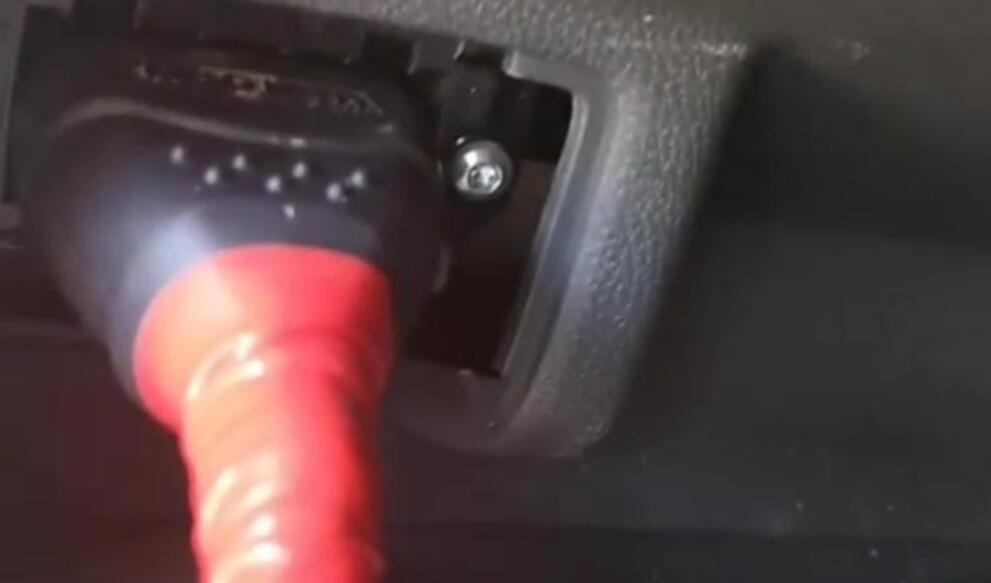
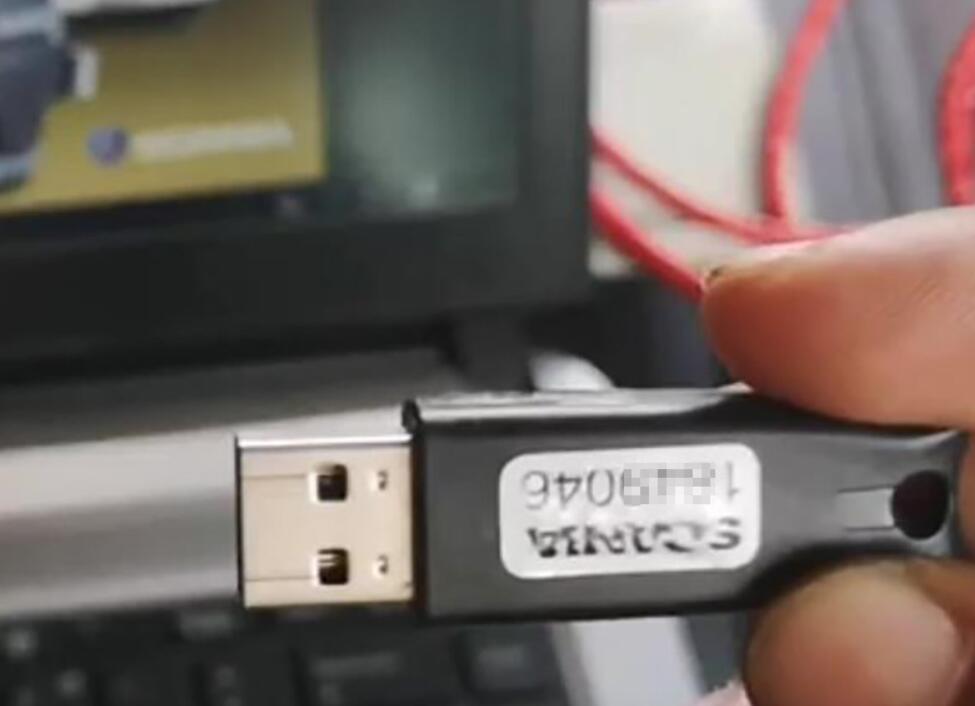
Plug the Heavy Duty Scanner VCI3 Scanner to this Scania via OBDII port and don’t forget the passenger PIN code.
Scania via OBDII port

First turn on the car.
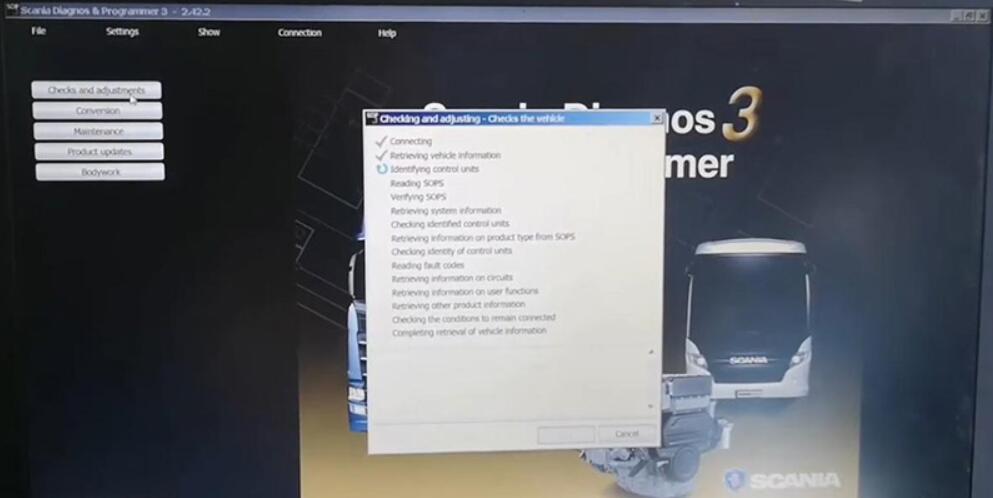
Run SDP3 app.
Enter “Checks and adjustments”. The loading process may take a few minutes.

Go to
FUNCTIONS>>Adjustment
Unfold
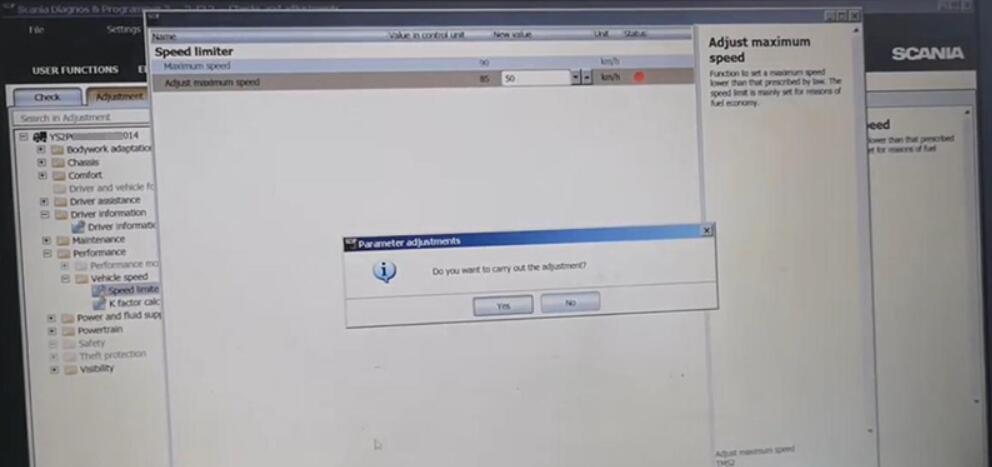
Performance>>Vehicle speed
Select “Speed limiter” “Adjust maximum speed” and click on “Change”.

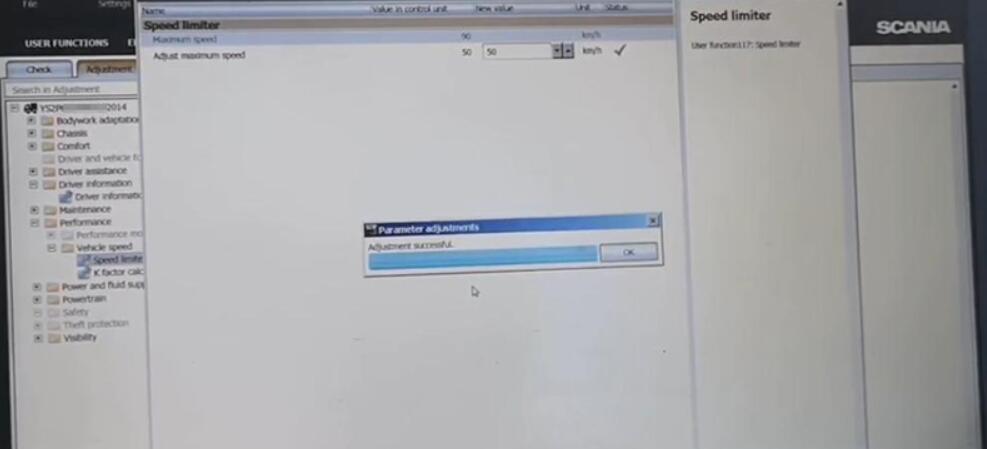
As the customer required, we set it from 85 to 50 km/h and click on “Execute”.


Done! Nice and simple!
If the car drives over 55 km/h, it will automatically adjust to less than it.