2021年8月4日星期三

NEW HOLLAND ELECTRONIC SERVICE TOOLS (CNH EST 9.4) UPD. 4 (REPLACES V9.3) DIAGNOSTIC SOFTWARE


Electronic Service Tool 9.4 (EST) Engineering Level* (software only) – used by New Holland dealer technicians to connect with vehicles that have a Controller Area Network (CAN) BUS.
The brand new version of New Holland CNH EST works with OS Windows 8 64 bit / 8.1 64 bit / 10 64 bit, except Home editions). If you have windows 7, we can offer you a previous version of CNH EST, as the 9.4(9.3) versions no longer support Windows 7 and in some cases won’t even loading.
*for advanced dataset registration and a lot of hidden options programming for vehicles, raw message simulations.

Optionally, you can purchase eTimGo for CNH EST 04.2021 for all brands OFFLINE which is a completely offline repair and diagnostics information database. With PIN search support.

The software EST v9.4 comes as:

CNH EST 9.4.0.0.0 installation file,
CNH EST 9.4.0.0.2 (EST9400Up1) update,
CNH EST 9.4.0.0.3 (EST9400Up2) update,
CNH EST 9.4.0.0.4 (EST9400Up3) update,
CNH EST 9.4.0.0.5 (EST9400Up4) update,
Vehicle Controller Files v46,
Legacy Multilanguage Diagnostic Procedures installer,
Optionally, by request, with Additional assistant Programs,
PC Locked Activation tool with the engineering access level.
The software EST v9.3 comes as:

CNH EST 9.3.0.0.0 installation file,
CNH EST 9.3.0.0.2 – 9.3.0.0.7 (EST9300Up5) updates,
Legacy Multilanguage Diagnostic Procedures installer,
Optionally, by request, with Additional assistant Programs,
PC Locked Activation tool with the engineering access level.

What’s new in the CNH EST v9.2 upd. 1 – 10

EST_9200_Update_1_Details

EST_9200_Update_2_Details

EST_9200_Update_3_Details

EST_9200_Update_4_Details

EST_9200_Update_5_Details

EST_9200_Update_6_Details

EST_9200_Update_7_Details

EST_9200_Update_8_Details

EST_9200_Update_10_Details

IMPORTANT NOTICE. Service Manuals, Schemes available only online.

In case if your PC/Laptop doesn’t fit with the minimum hardware requirements, we can offer the CNH EST v9.0 (2019/01), which is still compatible with the 32-bit windows and 3/4 Gb of RAM. Please indicate the desired application version in the comments field. Or via the contact us form.

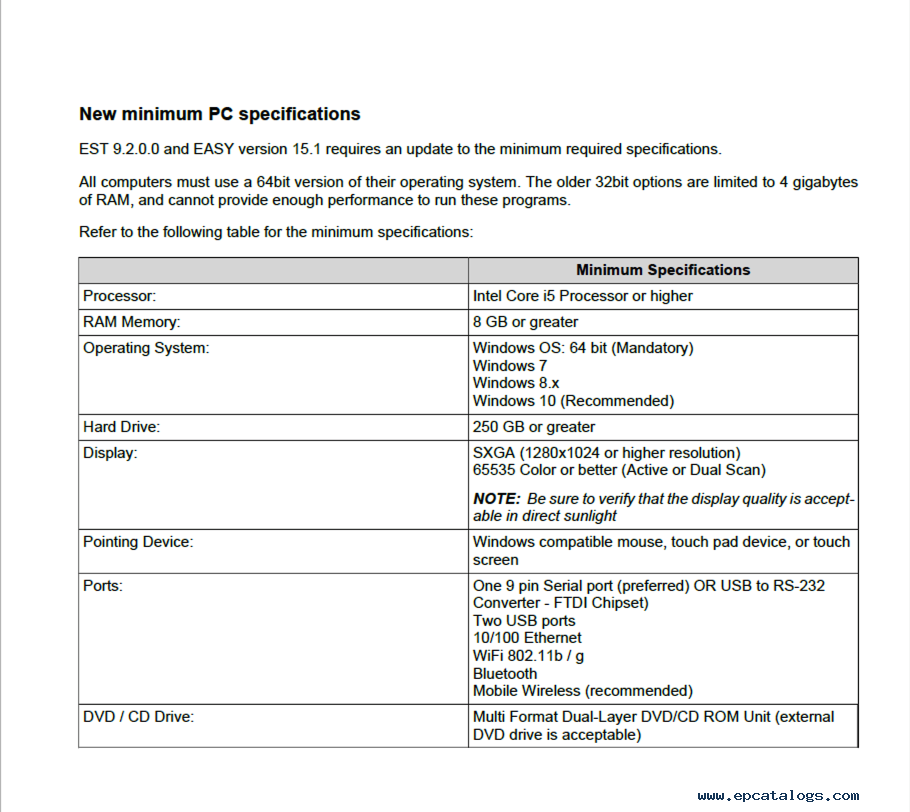
New minimum PC specifications

All computers must use a 64-bit version of their operating system. The older 32bit options are limited to 4 gigabytes of RAM, and cannot provide enough performance to run these programs.

Minimum Specifications

Processor: Intel Core i5 Processor or higher;

RAM Memory: 8 GB or greater;

Operating System: Windows OS: 64-bit (Mandatory)

Windows 7

Windows 8.x

Windows 10 (Recommended)

Hard Drive: 250 GB or greater;

Ports: One 9 pin Serial port (preferred) OR USB to RS-232

Converter – FTDI Chipset)

Two USB ports

10/100 Ethernet

WiFi 802.11b / g

Bluetooth

Mobile Wireless (recommended)
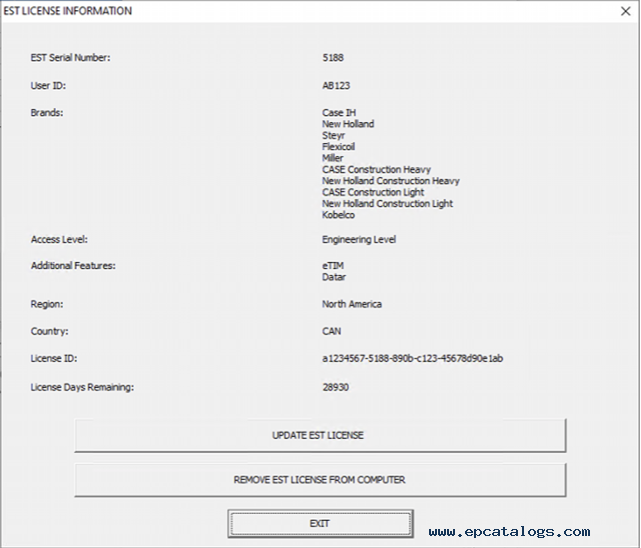
The following brands of the CNH group are covered:

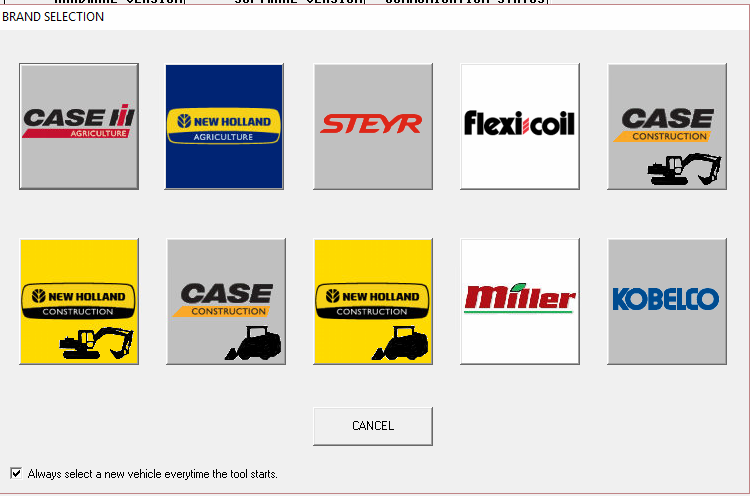
New Holland (Agriculture and Construction)
New Holland FK (Fiat-Kobelco)
New Holland O&K (Orenstein & Koppel)
CASE (Agriculture and Construction)
STEYR
KOBELCO
Iveco (Astra) (articulated dump trucks only)
Flexi-Coil
Sumitomo (S.H.I.)
Link-Belt

The last version of CNH EST with technical documents is 7.6. If you need electrical schemes, please consider purchasing CNH EST 7.6 version on virtual PC with Windows XP Works with any Windows platform.

New Holland Electronic Service Tool allows you to:

• Check the status of parameters;
• Retrieve faults;
• Run diagnostic tests;
• Make ECU and parameter programming;
• Monitor active and logged diagnostics;
• View and change ECU configuration;
• View diagnostic procedures and schematics.
• Troubleshoot problems;
• Run scope diagnostics;

CNH EST can be downloaded, or we can send it as a set of DVDs

We recommend using our free remote assistance with the setup and activation process.
If you have advanced Computer Skills, we can provide you with all the information for installation and activation

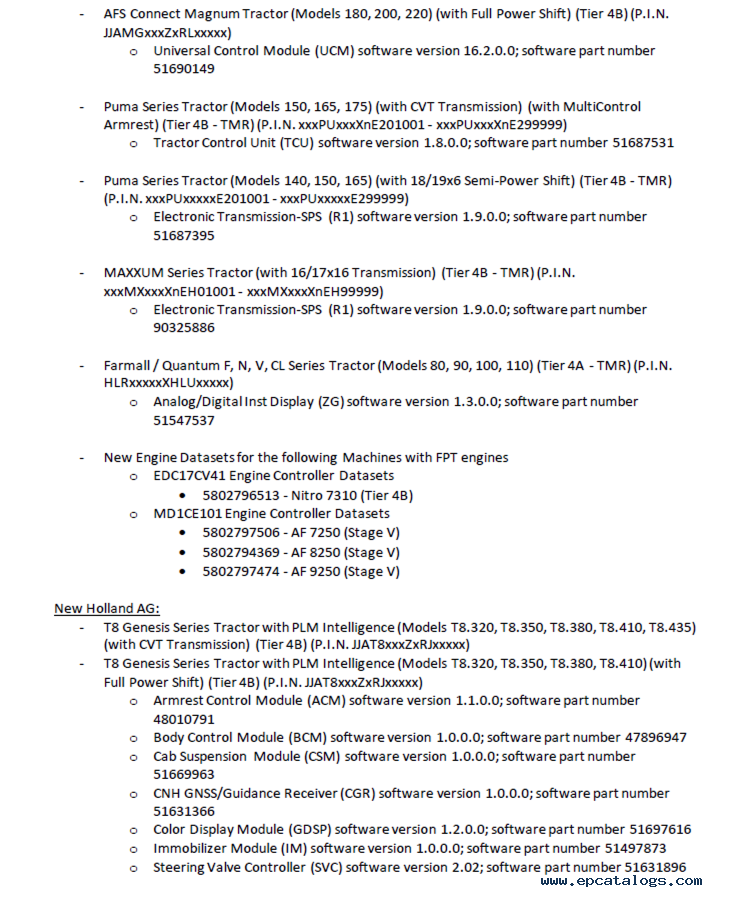
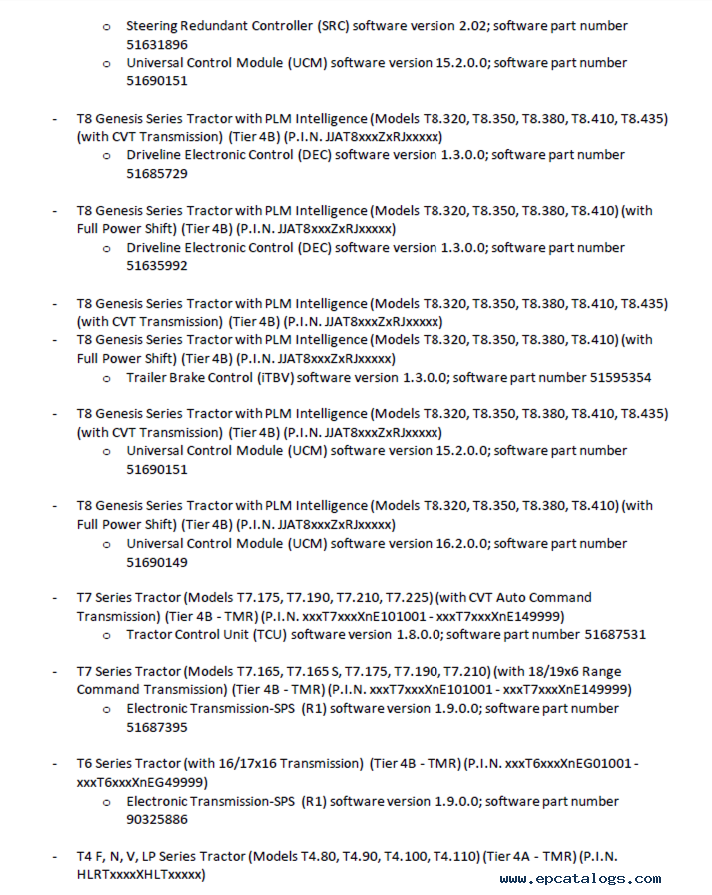
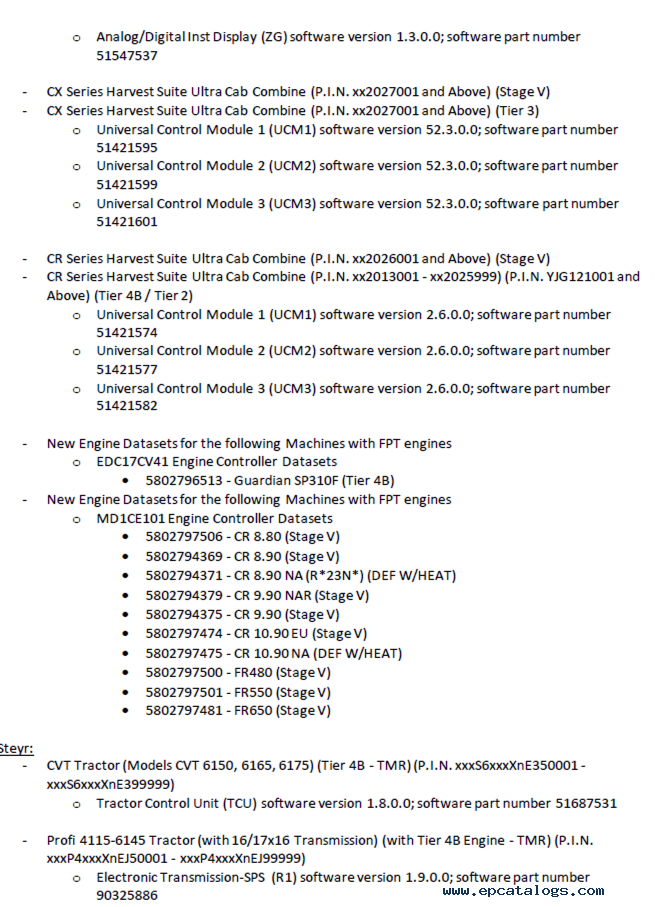
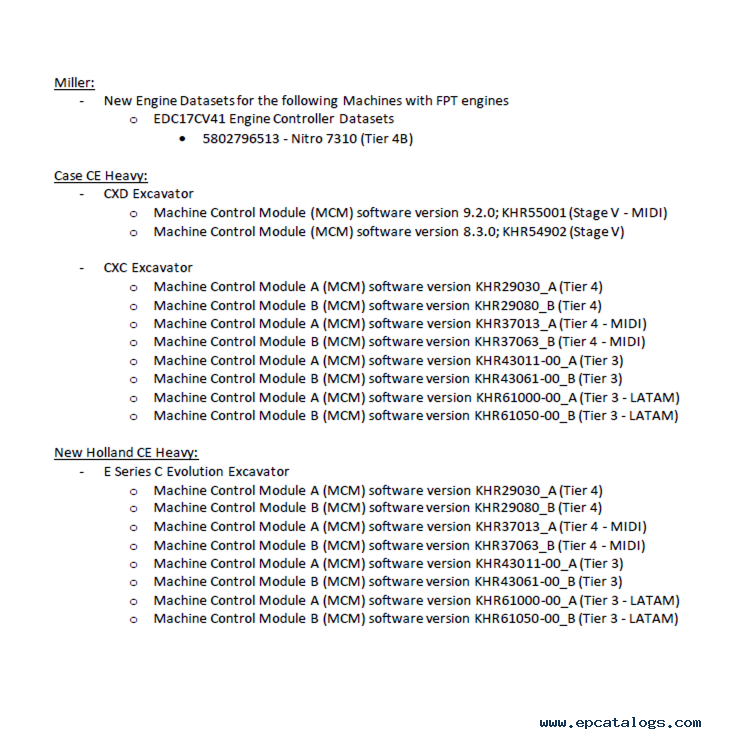
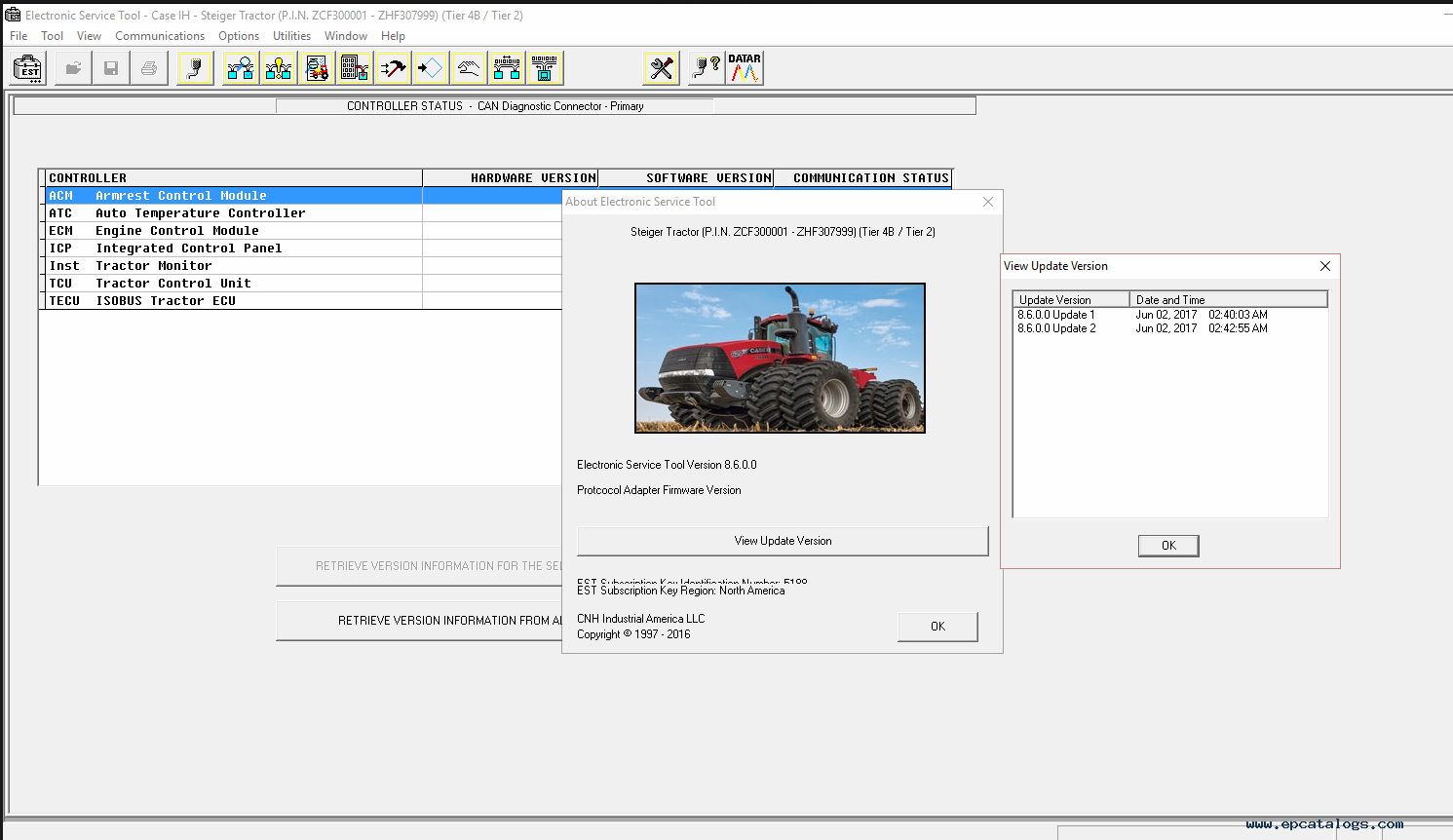
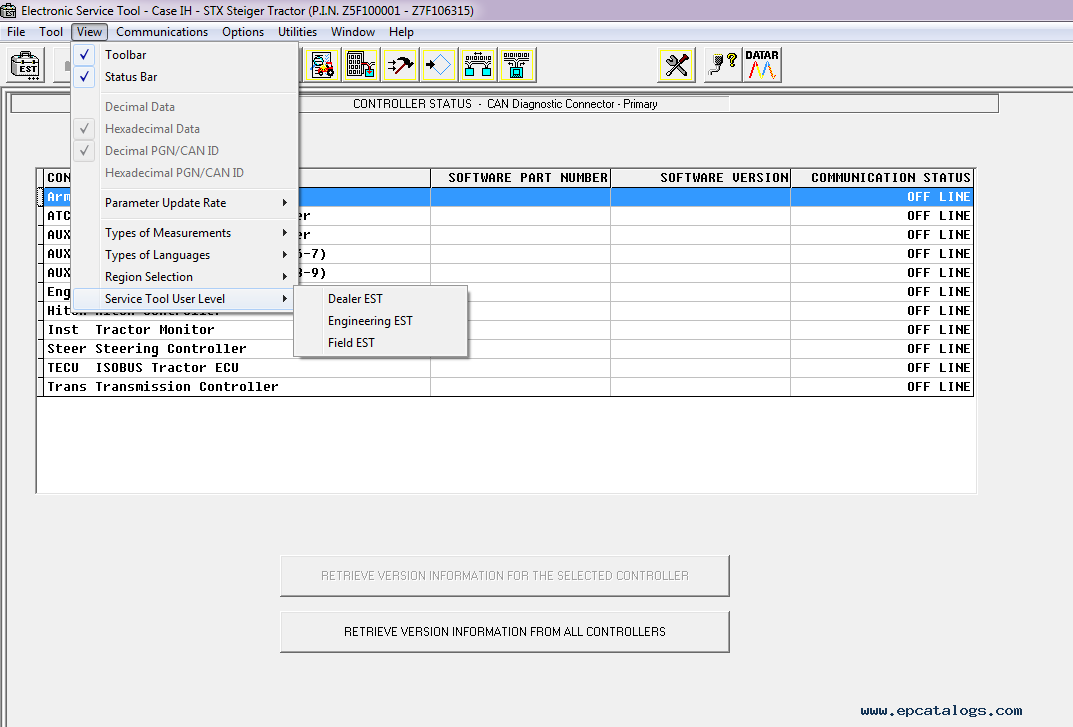
Screenshots for New Holland Electronic Service Tools (CNH EST 9.4) Upd. 4 (replaces v9.3) Diagnostic Software:
2021年8月2日星期一

Ialtest Link Truck Diagnostic Tool V12.2 Software Free Download


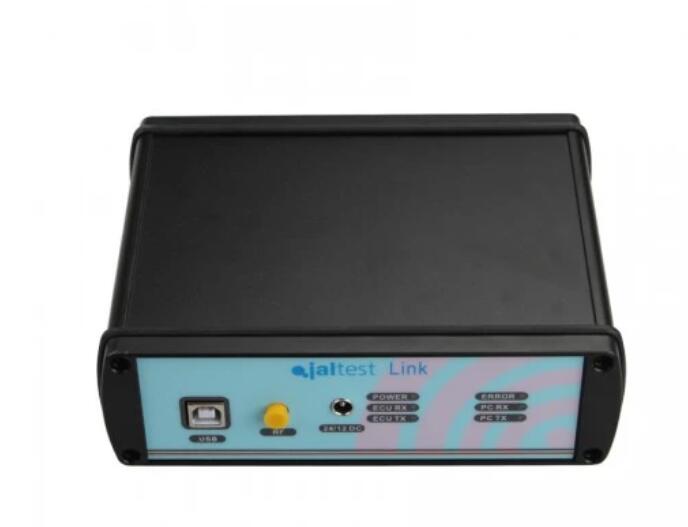
Ialtest link is a professional heavy duty truck diagnostic tool for multi brands, supports English and Spanish language. It can read fault codes, sensor data measurement, calibration features ECU, there are a lot of maintenance information and circuit diagrams, electrical schematics,etc.

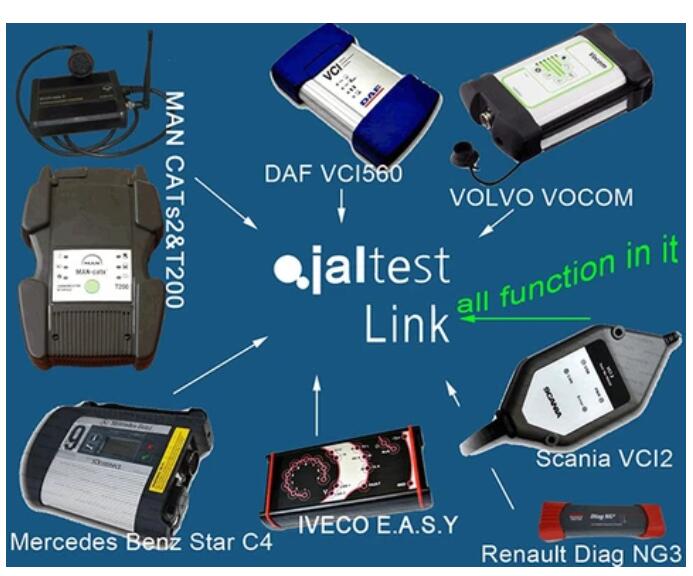
Ialtest is a comprehensive device combines different popular diagnostic tools such as Man CAT T200, SD Connect C4, DAF VCI560, VOLVO VOCOM, Scania VCI2, IVECO E.A.S.Y ect. in one device.

Ialtest-Link-truck-diagnostic-tool-1
Ialtest-Link-Truck-Diagnostic-Tool-2

Ialtest Link Truck Diagnostic Tool Description
1. JALsoftware has system electronic scheme, technical date, maintenance date, technical release,IALtest,
2. There are a lot of maintenance information and circuit diagrams, electrical schematics, maintenance help, and a very simple and convenient diagnostic tool.
3. It is not only an advanced feature of the Scanner can diagnostic trucks,  buses, construction vehicles,  light commercial vehicles, trailer, special vehicle, agricultural machinery and more manufacturers etc. to test a good diesel, diesel pump and natural gas engines, single pump, high pressure common rail pump, and injector.
Top Three Reasons To Get Ialtest Link
1. It is not only has a common diagnostic functions, as well as calibration, reset and parameterize advanced features.
2. It can be useful to test the pressure of common rail maintenance parameters
3. It is a good detector, he had read fault codes, sensor data measurement, calibration features ECU,and test units as
ZME,IMV,EFC/M-PROB,PVC valve, fuel measurement solenoid valves .
Ialtest Link Truck Diagnostick Tool Vehicle List
1. mercedes-benz
2. MAN Trucks BUS
3. DAF
4. VOLVO GROUP
5. IVECO
6. SCANIA
7. Renault
8. HINO AMERICAN
9. HYUNDAI LIGHT-COMMERCIAL VEHICLE
10. ISUZU
11. MITSUBISHI LIGHT-COMMERCIAL VEHICLE
12. TOYOTA LIGHT-COMMERCIAL VEHICLE
13. NISSAN LIGHT-COMMERCIAL VEHICLE
14. CITROEN LIGHT-COMMERCIAL VEHICLE
15. FIAT LIGHT-COMMERCIAL VEHICLE
16. LIGHT-COMMERCIAL VEHICLE
17. FRIEIGHTLINER
18. GM-CHEVROLET HEAVY-DUTY
19. INTERNATIONAL HEAVY-DUTY
20. KENWORTH
21. MACK
22. PETERBILT
23. STERLING
24. WESTERN STAR
25. DODGE
26. Others Vehicle
27. Vehicle ABS, EBS, transmission, suspension , Electronic module.( some Vehicle Need optional cable, or DIY a cable yourself )
ialtest-link-truck-diagnostic-tool-vehicle-list-vxdas
Ialtest Link Supported Protocols:

Protocol DB37 PIN protocol DB37 PIN
Power: 1PIN(DC) J1850 PWM+ 2PIN(I)
Ground: 19PIN(DC) J1850 PWM- 21PIN(J)
K Diag line: 15PIN(C) J1850 VPW 22PIN(K)
L Diag line: 16PIN(D)
CAN high 17PIN(E)
CAN low 18PIN(F)
SAE J1708 A 34PIN(G)
SAE J1708 B 35PIN(H)
Ialtest Link V12.2 Software Download Link

https://mega.nz/folder/Vb5QhbIA#6sAQGN4wYU0DpcV2l3bOxg

Enjoy!

2020年3月5日星期四

Test the Connection to the Vehicle using NEXIQ Device Tester

Test the Connection to the Vehicle
Use the Device Tester to test the connection between the USB-Link and the vehicle. At startup, the Device Tester checks for any NEXIQ drivers installed on the PC.
-Download NEXIQ Product Driver here: NEXIQ Driver
Access the Device Tester from the Windows task-bar
1. Prepare your PC, and connect Heavy Duty Truck Scanner NEXIQ device to Diagnostic Port/Connector on unit.
2. Click Start and then select All Programs – NEXIQ – Device Tester, or through shortcut “Device Tester” on desktop.
3. Use the drop-down button in the “Device” box to select the appropriate device (for example: USB-Link). The Device box lists all the devices supported by the NEXIQ drivers installed on the PC.
4. Use the drop-down button in the “Protocol” box to select the appropriate protocol (for example: J1708). The Protocol box lists only the protocols supported by the device selected in the “Device” box.
5. Press the “Start Test” button.
6. The “Device Tester” screen is refreshed, and data received from the vehicle bus is displayed in the “Bus Messages” window.

NOTE: The window in the lower portion of the screen displays a list of all systems seen on the bus. It is used for J1708 and J1939 only. For all other protocols this window will be unavailable (i.e., NOT USED). For J1708, the window title reads MIDs Seen. For J1939, the window title reads Source Addresses Seen.
Preparing to Use the USB-Link
7. If the Connection Indicator button is red (i.e., Not Connected), do one of the following:
—For wireless connection using Bluetooth technology:
? In the Device list, make sure that the heading is BT USB-Link (Protocol desired).
? Check to ensure that the connections between the USB-Link and the vehicle are secure (i.e., the Diagnostic Connector).
? Check to make certain that the Power LED on the USB-Link is illuminated.
? Check to make sure you are “paired” with devices.
—For wired connection using a USB cable:
? In the Device list, make sure that the heading is USB-Link (Protocol desired).
? Check to ensure that the connections between the USB-Link and PC are secure (i.e., the USB cable).
? Check the connections between the USB-Link and the vehicle (i.e., the Diagnostic Connector).
? Check to make certain that the Power LED on the USB-Link is illuminated.
8. Click “Stop Test” to end the test, or select another device to test

http://blog.obdii.shop/test-the-connection-to-the-vehicle-using-nexiq-device-tester/